
Dell D3100 USB 3.0 Ultra HD/4K Triple Display Docking Station (Renewed) with 65W Adapter, HDMI, DisplayPort & USB 3.0 Cable
Online ordering opens soon. Contact us for pricing and availability.

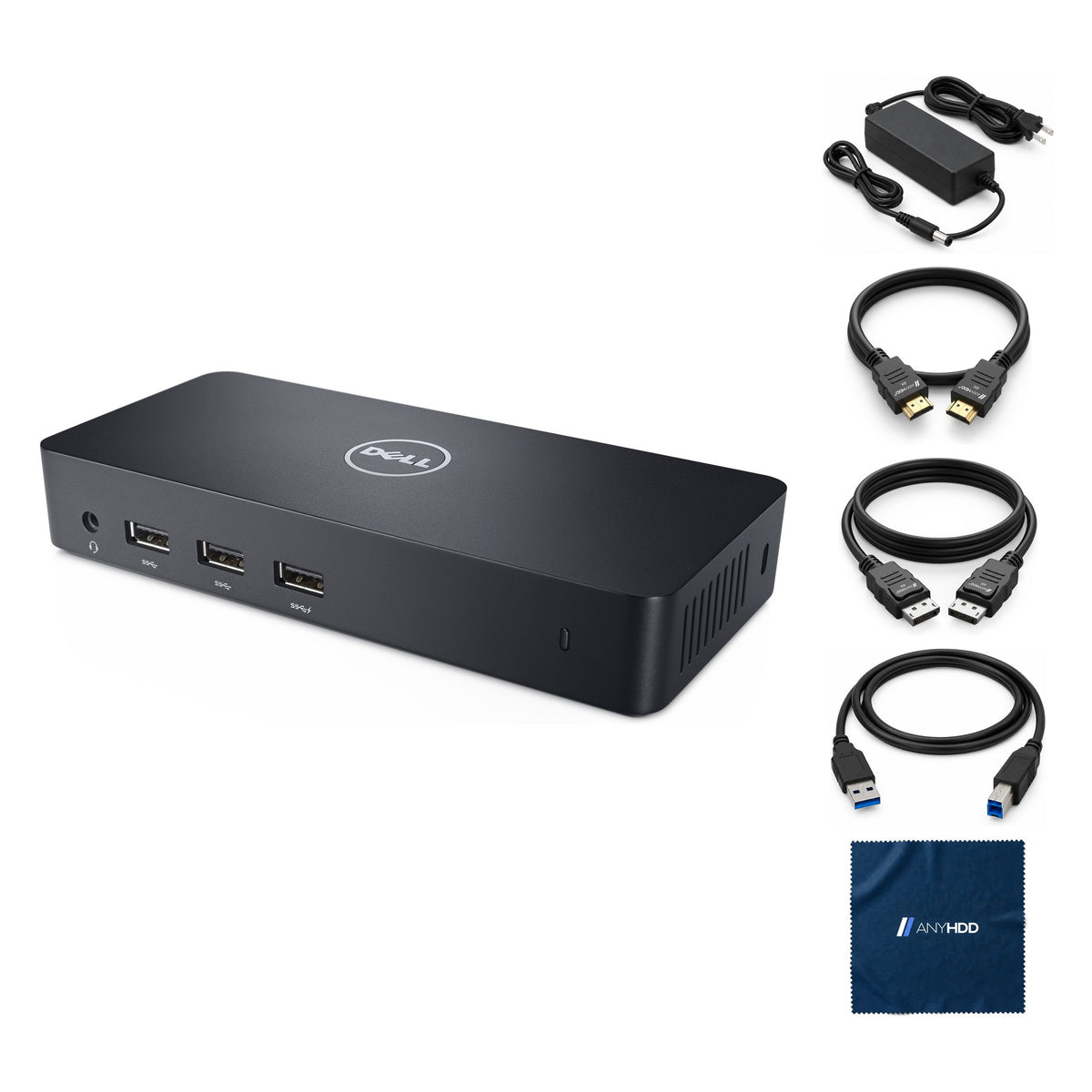
What's in the box.


Three screens from one USB port.
Plug the D3100 into a USB 3.0 port and it adds up to three displays, one of them 4K, plus Gigabit Ethernet, five USB ports and audio, on any Windows laptop with the DisplayLink driver.

Powers itself, not your laptop.
The D3100 connects over USB 3.0, which carries the displays, network and USB, but not power for the laptop. Its 65 W adapter runs the dock and its ports; the laptop stays on its own charger.
Two ports are high-powered for charging a phone or headset (BC 1.2): the front USB 3.0 with the lightning icon and the rear USB 2.0 with the lightning icon.

Up to three displays.
Pick your layout.
One DisplayPort and two HDMI, driven by DisplayLink over USB 3.0. Choose how many screens you run to see what the D3100 drives to each.
The D3100 is a DisplayLink dock: its monitors are run by the DisplayLink driver on the laptop and sent over USB. That is how it adds screens through a USB port, and why the driver has to be installed.
Dell recommends an Intel Core i3 at 2 GHz or better with 4 GB of memory for office work, and, for full-screen video, a Skylake Core i3 or a Core i7 at 2 GHz or better (or an AMD A10-575x or A10-7400P) with 8 GB, USB 3.0 and an SSD or 7200 rpm disk. 4K video must be decoded by the laptop's GPU.
Figures are Dell's published resolutions for the D3100 with the DisplayLink driver; each monitor's own capabilities (EDID) also limit them. HDCP-protected video (DVD, Blu-ray) does not play on the dock's screens.
Eleven ports, front and back.
Video, network, USB 2.0, audio out and the USB 3.0 link to the laptop on the back; a headset jack and three USB 3.0 up front.
Front
Rear
The two HDMI ports are stacked.
Front
- Headset jackheadphone and microphone combo
- USB 3.0 × 3one high-powered for charging (BC 1.2)
Rear — video
- DisplayPort4K 3840 × 2160 at 30 Hz
- HDMI × 22560 × 1440 at 50 Hz, or 2048 × 1152 at 60 Hz with both in use
- USB in USB 3.0 Type-Bupstream link to the laptop
Rear — data, audio and power
- USB 2.0 × 2one high-powered for charging (BC 1.2)
- Gigabit EthernetRJ45, link and activity LEDs
- Line outfor speakers
- Power in65 W adapter
Wired where it counts.
Gigabit Ethernet gives a laptop that lives on Wi-Fi a steady connection at the desk, and five USB ports cover the drive, the printer and the keyboard receiver.
- Gigabit EthernetRJ45: solid green on link, blinking amber on activity.
- Three USB 3.0, two USB 2.0USB 3.0 up front for drives, USB 2.0 at the back for the keyboard, mouse and printer.
- Headset and speakersA headset combo jack on the front and an audio line out on the back.
- Wake from the networkDell's troubleshooting points to the laptop's BIOS setting for waking from the dock's Ethernet port; it depends on the laptop.
Built for the whole floor.
A dock that works through any USB 3.0 port, with the driver handled the way IT already handles drivers.
Corporate driver package
DisplayLink publishes a corporate installation package, so IT can push the driver before docks reach desks.
Driver from Windows Update
On a connected laptop, Windows starts installing the DisplayLink driver by itself when the dock is connected.
Lock slot
A Kensington lock slot keeps the dock on the desk.
Status at a glance
Power LED bright white when working, white in standby. Ethernet LEDs show link and activity.
Works with what you already own.
Any Windows laptop with a USB port: USB 3.0 recommended, USB 2.0 works. No USB-C, Thunderbolt or video output on the laptop needed.
A USB Type-A port, USB 3.0 for full speed (Dell: "USB 2.0 but USB 3.0 recommended"), and Windows. The included USB 3.0 cable runs from the dock's Type-B port to the laptop.
One driver: DisplayLink, from Windows Update or displaylink.com. Dell's guide lists Windows 7, 8, 8.1 and 10.
Renewed, the way we do it.
Every D3100 goes through the same five stations before it's listed. If it doesn't pass, it doesn't ship.
Intake and identification
Model, revision and service tag logged. Anything that isn't a genuine Dell D3100 is rejected here.
Full functional test
Every port loaded and all three video outputs driven through the DisplayLink driver on a real laptop; Ethernet and audio checked.
Reset and erase
Settings returned to factory defaults. Any stored settings cleared.
Clean and grade
Housing cleaned and inspected. Cosmetic grade recorded.
Repack with the right adapter
Matched with a 65 W adapter, the USB 3.0 cable and the video cables, packed in a new box.
Backed by AnyHDD's one-year warranty and 30-day returns, with free return shipping on defective items. We've supplied IT hardware to businesses since 2006.
Tech specs
As published in Dell's D3100 user guide.
| Model | Dell Docking Station – USB 3.0 (D3100) |
|---|---|
| Host connection | 1 × USB 3.0 Standard-B (upstream) |
| Video ports | 1 × DisplayPort 2 × HDMI |
| External displays | Up to three (DisplayLink driver required) |
| Maximum resolution | DisplayPort 3840 × 2160 at 30 Hz. HDMI 2560 × 1440 at 50 Hz (one HDMI in use) or 2048 × 1152 at 60 Hz (both) |
| USB ports | 3 × USB 3.0 (front), 2 × USB 2.0 (rear); two high-powered ports for battery charging (BC 1.2) |
| Network | Gigabit Ethernet (RJ45) |
| Audio | Headset combo jack (front), audio line out (rear) |
| Power delivery to host | None |
|---|---|
| Power adapter | 65 W (as bundled; Dell's guide does not state the rating) |
| LED indicators | Power: bright white (working), white (standby). Ethernet: solid green (link), blinking amber (activity) |
| Operating systems | Windows 7, 8, 8.1, 10 (32/64-bit) |
| HDCP content | Not supported |
| Security | Kensington lock slot |
| Operating temperature | Up to 40 °C |
Source: Dell Docking Station – USB 3.0 (D3100) User Guide (specifications, resolution table, system requirements, troubleshooting). Adapter rating from the confirmed AnyHDD bundle. Dimensions and weight left out: no Dell source on file.
Questions we get asked.
Will the D3100 work with my laptop?
If it runs Windows and has a USB port, yes: Dell lists Windows 7, 8, 8.1 and 10 (32 and 64-bit) with the DisplayLink driver, and recommends USB 3.0 (USB 2.0 works more slowly). It doesn't depend on the laptop brand or on USB-C video support.
Dell's guide doesn't list macOS, Linux or ChromeOS for the D3100, so we don't recommend it for those.
Does it charge my laptop?
No. The D3100 connects over USB 3.0, which doesn't carry laptop power. Its 65 W adapter powers the dock; keep the laptop on its own charger. Two of the dock's USB ports (marked with a lightning icon) do charge phones and headsets.
Do I need to install a driver?
Yes, one: DisplayLink. On a connected laptop, Windows starts installing it automatically; you can also download it from displaylink.com, and IT can use DisplayLink's corporate installation package. The displays need the driver; USB, Ethernet and audio come up as standard devices.
Why is my 4K monitor running at 30 Hz?
That is the D3100's maximum for 4K: 3840 × 2160 at 30 Hz, on the DisplayPort only. The HDMI ports top out at 2560 × 1440 (50 Hz) with one in use, or 2048 × 1152 at 60 Hz each with both in use. DVD, Blu-ray and other HDCP-protected video won't play on the dock's screens.
USB devices or audio stopped working. What should I do?
Dell's fix: unplug the dock's power, wait 10 seconds and reconnect, and update the laptop's USB 3.0 host controller driver. For audio, check that the USB audio device is set as default in the Windows Sound settings. If the laptop won't boot with the dock attached, unplug the USB devices from the dock and try again.
How fast does it ship?
Every order ships with tracking. Delivery options and timing are shown at checkout.
What warranty comes with it?
One year from the date of delivery, covered by AnyHDD.
What if I need to return it?
If it fails in the first 30 days, you choose replacement or refund. There is no restocking fee, and refunds go back to your original payment method. If the item arrived defective, damaged, or isn't what you ordered, AnyHDD pays the return shipping; for any other reason the return label is yours to cover.
Is anything left on the D3100 from a previous owner?
No. Renewed units go through firmware and reset before they are listed: settings returned to factory defaults, and any stored settings cleared. We've supplied IT hardware to businesses since 2006.